How to operate the R62/R62A
A guide on how to operate the R62 and R62A fleets in MTAoR.
Where to spawn
R62
IRT Lexington Avenue:
- Livonia Yard
R62A
IRT Lexington Avenue:
- Brooklyn Bridge-City Hall
- Westchester Yard
IRT Flushing:
- Corona Yard
- 34 St-Hudson Yards
Rank restrictions
The R62 and R62A do not have any rank restrictions. They are available to all Subway trained operators at any of the above locations.
How to set up your destination
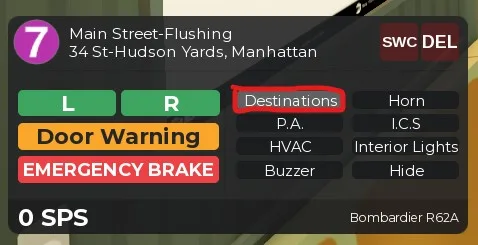
First, use the Destinations button in the main drive UI to open the Signage Controller:
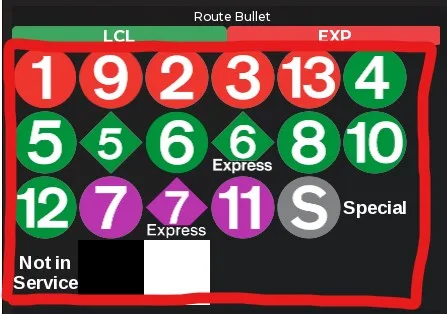
 To set the Route rollsign, select one of the options at the top. The front and side signs will automatically scroll to your selection. Note: You cannot make another selection until the signs have stopped scrolling.
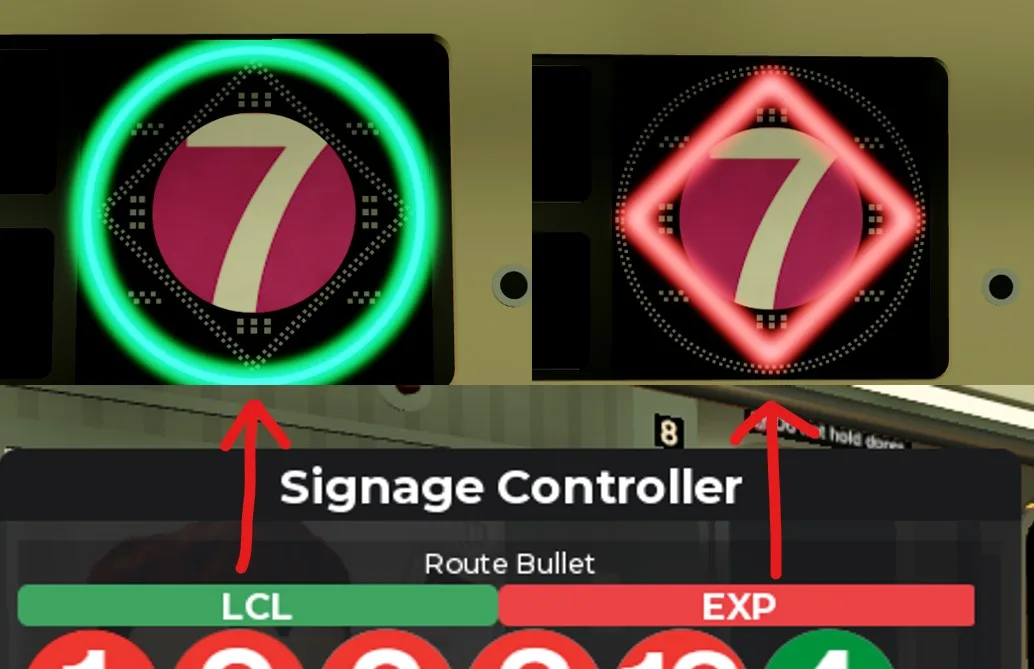
 R62A Only: Use the LCL or EXP buttons at the top to change the LED indicators on the side signs:
 To set the North and South Terminals of the Side Signs, scroll down in the Signage Controller and select the destination(s) you'd like to display. The side signs will automatically scroll to your selection. Note: You cannot make another selection until the signs have stopped scrolling.
How to drive the train
To drive the R62 or R62A, simply use W to accelerate and S to brake. Neither train has throttle operations, they use the Simple drive system.
To reverse, hold down S while stopped. While reversing, S accelerates, and W brakes.
To open or close the left side doors, click on the L button on the GUI, or press the Q key on your keyboard.
To open or close the right side doors, click on the R button on the GUI, or press the E key on your keyboard.
To activate the emergency brake, press the EMERGENCY BRAKE button on the GUI, or press the V key on your keyboard.
R62A only: PA system
To use the PA system, first make sure you are connected to Roblox VC and your microphone is unmuted.
Then, press the P.A. button in the GUI. It will begin flashing blue, indicating that the PA is now active. While the PA is active, anything you say will be broadcast to the entire train. To disable the PA system, press the P.A. button again. Once the button is no longer flashing blue, the PA is off.
Other functions
To honk the horn, hold down the Horn button in the UI, or hold down the H key on your keyboard. The horn will continue to honk as long as you hold down the button or H key.
To turn on or off the lights in the passenger cars of the train, press the Interior Lights button in the GUI. You can also use the J key on your keyboard.
To turn on or off the train's HVAC (air conditioning/heating) system, press the HVAC button in the GUI.
To switch the displayed speed in the GUI between SPS and MPH, click on it.
To hide the Drive UI and operate in first person, click the Hide button in the GUI, or press the G key on your keyboard. To show the UI again, press the Show button, or press the G key again.
Note: The ICS and Buzzer keys do not currently have any function.
To switch to the other operating cab on the other side of the train, type !switchcabs or !sc in the chat, or press the SWC button in the UI.
To delete the train, type !deletetrain or !del in the chat, or press the DEL button in the UI. Keep in mind that the train will automatically delete if no one is sitting on either operating seat for more than 60 seconds.