How to operate the R188
A guide on how to operate the R188 fleet in MTAoR.
Where to spawn
IRT Flushing:
- Corona Yard
- 34 St-Hudson Yards
Note: There is no functional difference between the R188 or the R188 (R142 Conversion) options in the spawner. The only difference is the car numbers that it can spawn with.
Rank restrictions
The R188 does not have any rank restrictions. It is available to all Subway trained operators at any of the above locations.
How to set up your destination
First, use the Destinations button in the main drive UI to open the Signage Controller:
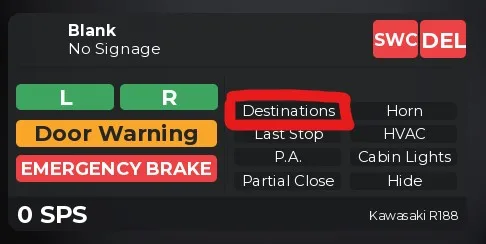 To set the program, select one of the program options. The train's program, including the front and side signs, and the interior signs, will immediately switch to the program you have selected.
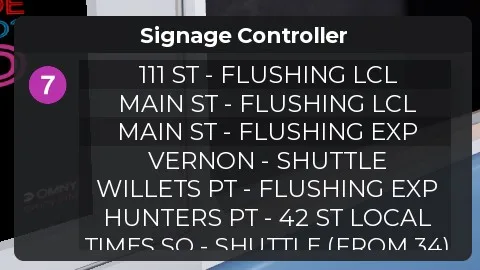 To input a custom code, scroll down to the bottom and enter it in the Custom Code box. To confirm, press Enter or Return on your keyboard. Custom codes can be found in the MTAoR Official Codebook.
Note: The R188 does not have any function to skip stops or synchronize the program at a stop.
How to drive the train
ATO (Automatic Train Operation)
ATO will use the Flushing Line's CBTC to automatically drive your train to the next stop. It will make a perfect stop at the stop marker.
To activate Automatic Train Operation, the train must first be stopped in a station. Once you have closed the doors, and are ready to depart, the "ATO START" button at the bottom of your screen will turn green to indicate that ATO is ready. Press the "ATO START" button to activate ATO.
Once ATO is started, your train will begin to accelerate on its own. Every so often, the ALERTER button will begin to flash, and a beep sound will be heard. Press the ALERTER button once to clear the alert. Failure to clear the alert within 5 "beeps" will result in the train's emergency brakes being applied.
When your train approaches its next station, ATO will automatically apply the brakes and stop your train in the station. After stopping, ATO will automatically deactivate.
To take over the train during ATO and change to Manual Train Operation, push the S or W keys at any time. Note: Once you have taken over the train, you will need to come to a full stop to activate ATO again. Also note that the ATO speed limit is 5 MPH more than the equivalent MTO speed limit.
Manual Train Operation
To drive the R188, simply use W to accelerate and S to brake. The R188 does not have throttle operations, it uses the Simple drive system.
To reverse, hold down S while stopped. While reversing, S accelerates, and W brakes.
To activate the emergency brake, press the EMERGENCY BRAKE button on the GUI, or press the V key on your keyboard.
Doors and Announcements
To open or close the left side doors, click on the L button on the GUI, or press the Q or N key on your keyboard.
To open or close the right side doors, click on the R button on the GUI, or press the E or M key on your keyboard.
To play the "Stand Clear of the Closing Doors Please" announcement, press the Door Warning button on the UI, or press the C key on your keyboard.
To set the train's signs to "LAST STOP" and play the "This is the last stop on this train. Everyone please leave the train. Thank you for riding with MTA New York City Transit." announcement, press the "Last Stop" button on the UI. Note: This announcement will play automatically upon opening the doors at the last stop of any active program.
Train Operator Display
To play Special Automatic Messages, you need to use the train's Train Operator Display (TOD). It is located here:
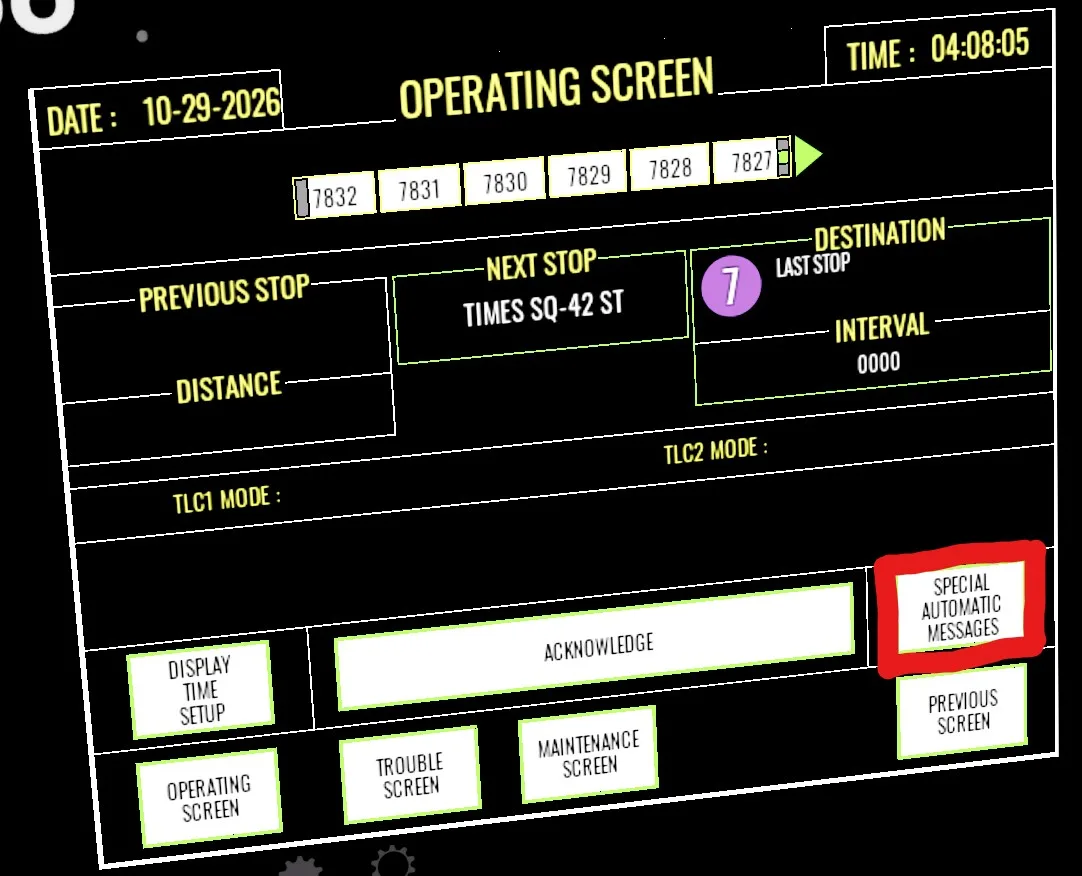
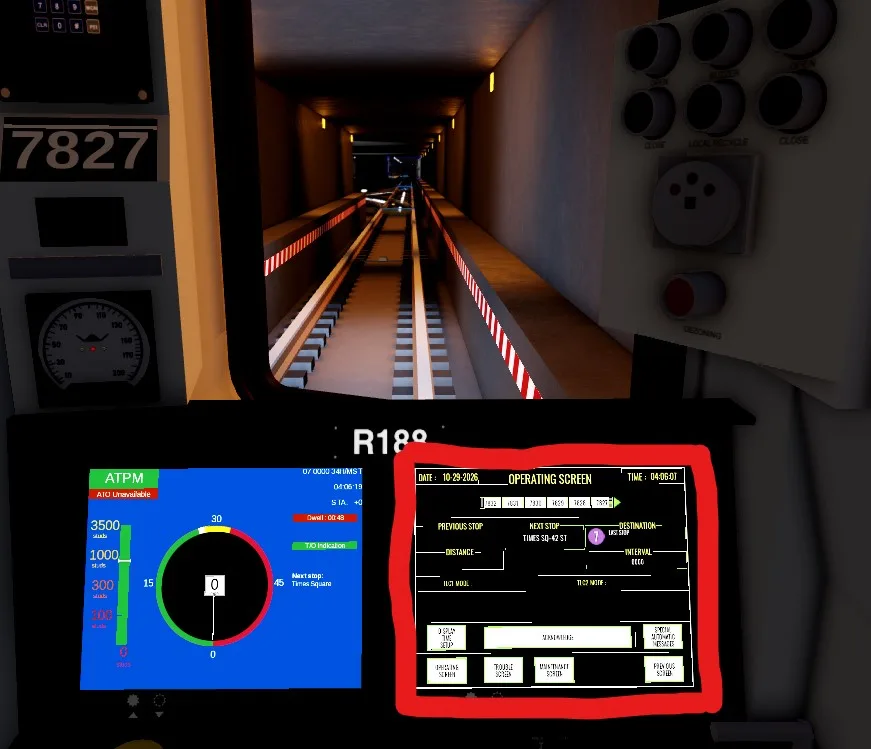 To open the SAM menu, press the SPECIAL AUTOMATIC MESSAGES button on the lower right corner of the TOD:
 To play a SAM, use the UP and DOWN buttons to select it, then press the PLAY SELECTED SPECIAL MESSAGE button to play it:
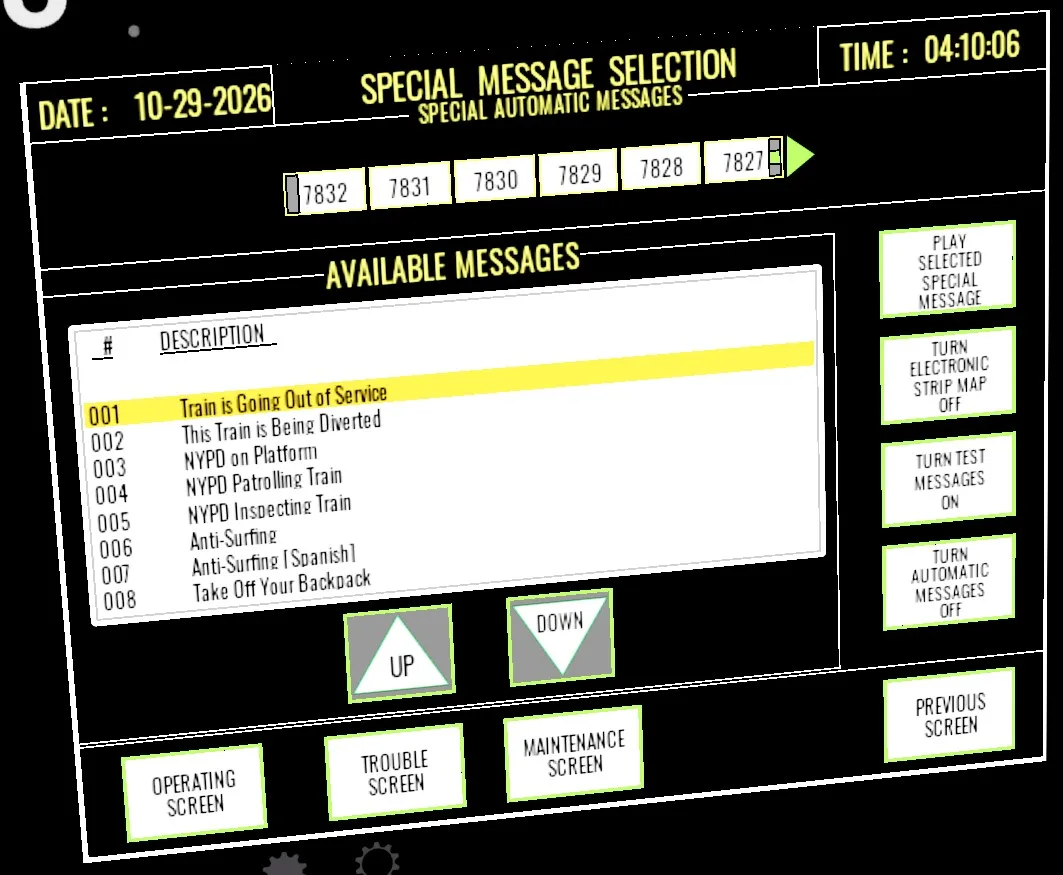 From this menu, you can also press the TURN ELECTRONIC STRIP MAP OFF/ON button to enable/disable the train's interior strip map.
You can also press the TURN AUTOMATIC MESSAGES OFF/ON button to enable/disable the automatic announcements of the train's current program.
To return to the regular TOD screen, press the OPERATING SCREEN button in the lower left corner.
CBTC Screen
The screen to the left of the TOD is the CBTC screen. It displays information about the train's current speed and speed limits:
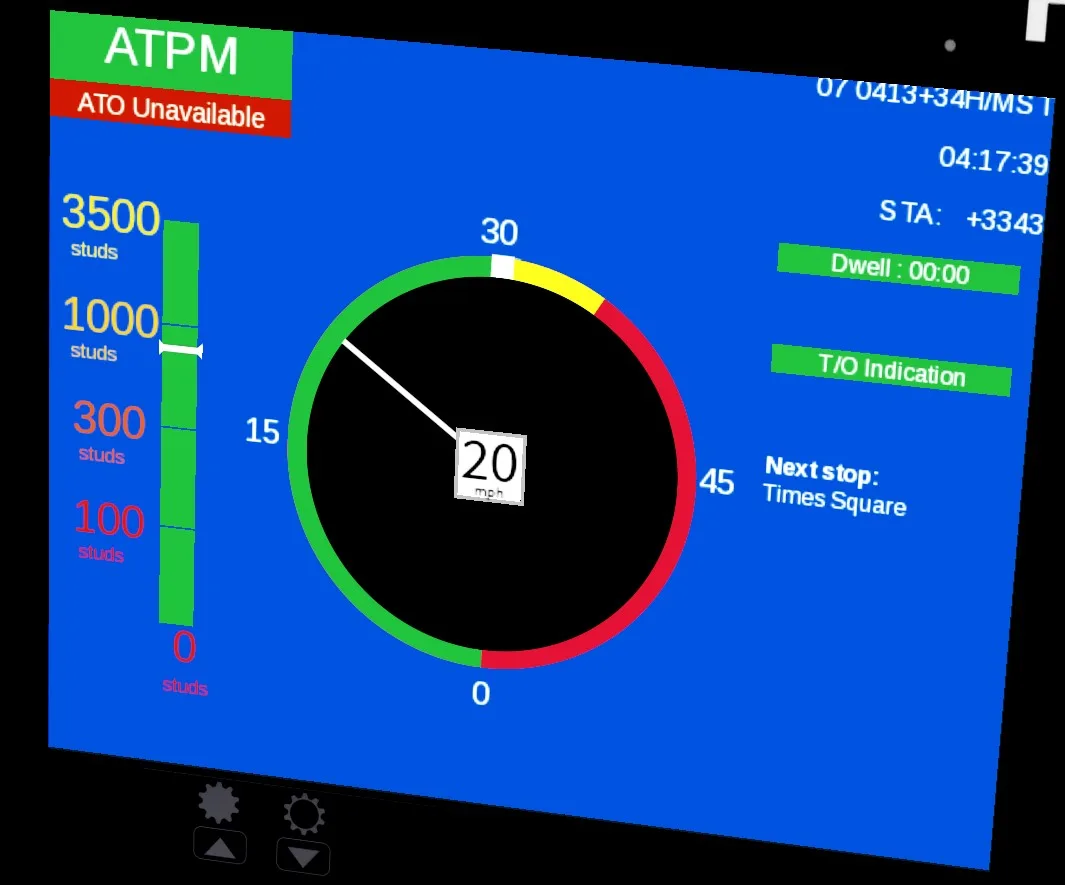 The green part of the ring indicates the allowable speed. The box in the center displays the train's current speed in Miles per Hour (mph).
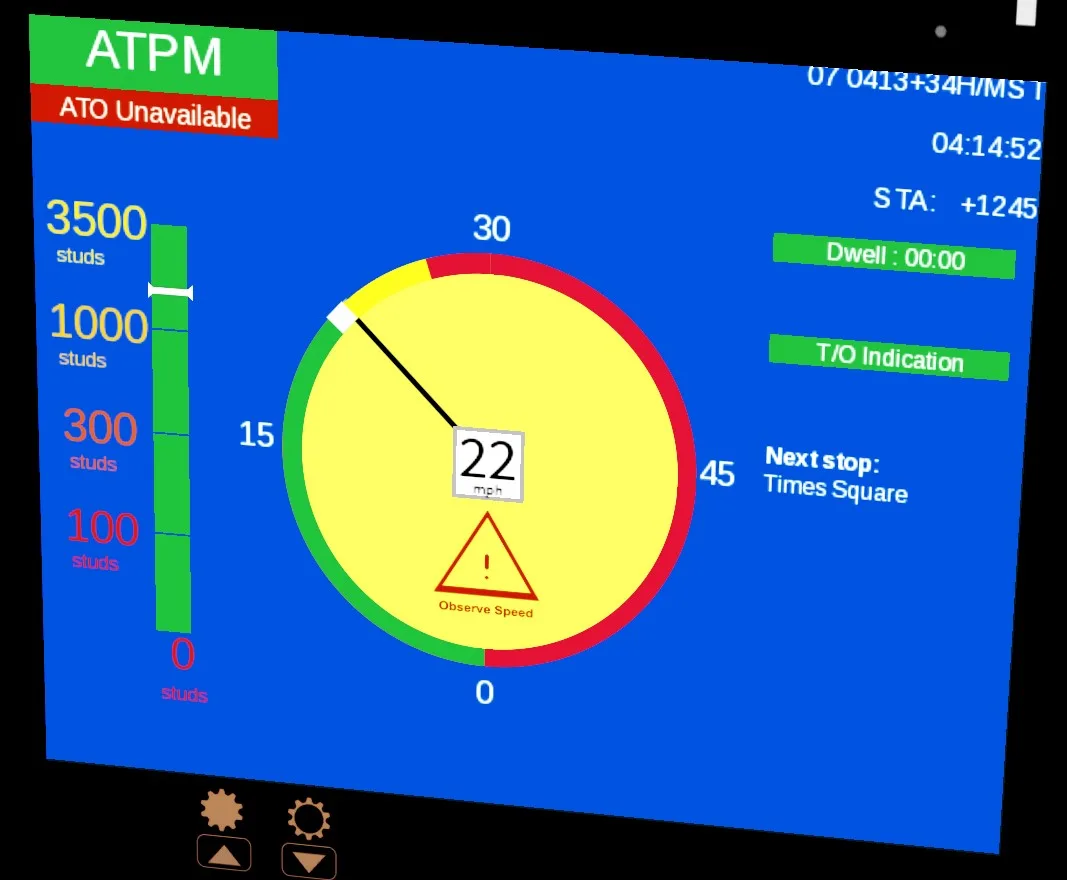
When you are exceeding the speed limit, the CBTC screen displays a yellow fill with a warning icon:
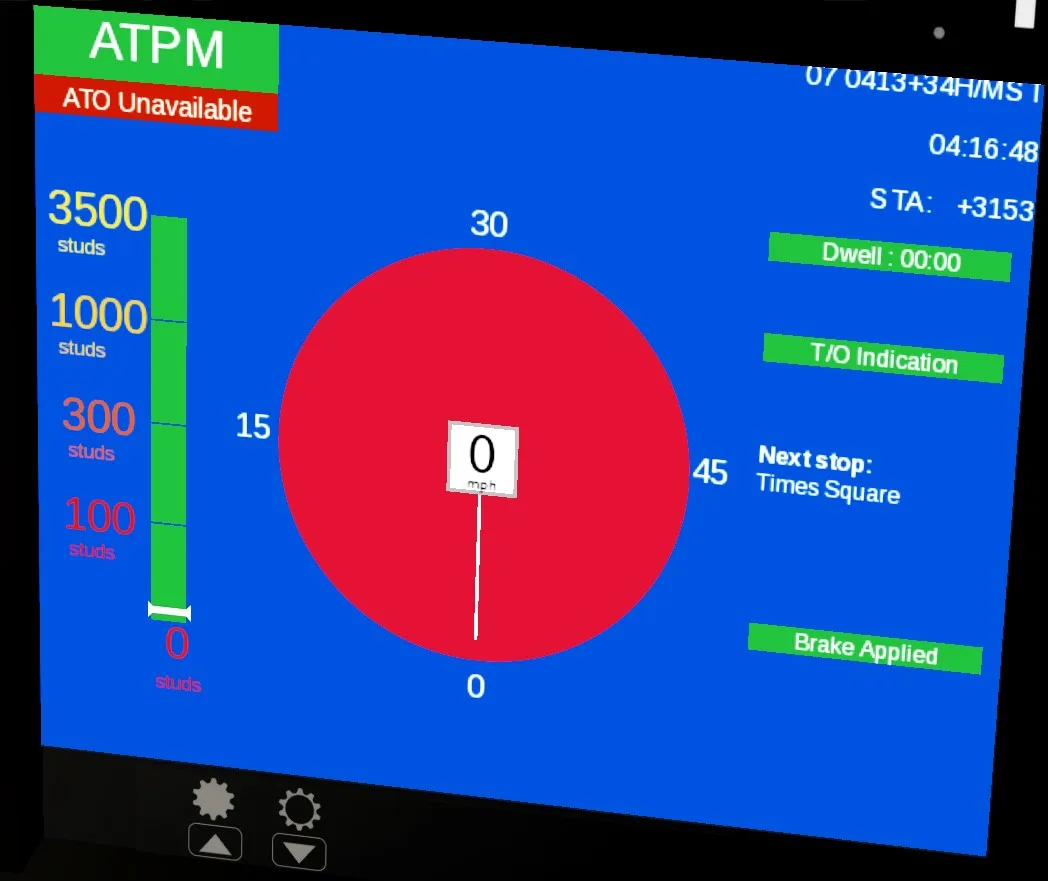
 When the train's emergency brakes are applied, the CBTC screen displays a red fill:
PA system
To use the PA system, first make sure you are connected to Roblox VC and your microphone is unmuted.
Then, press the P.A. button in the GUI. (Alternatively, press the F key on your keyboard.) It will play the PA ding, and then begin flashing blue, indicating that the PA is now active. While the PA is active, anything you say will be broadcast to the entire train. To disable the PA system, press the P.A. button again. Once the button is no longer flashing blue, the PA is off.
Other functions
To honk the horn, hold down the Horn button in the UI, or hold down the H key on your keyboard. The horn will continue to honk as long as you hold down the button or H key.
To turn on or off the lights in the passenger cars of the train, press the Cabin Lights button in the GUI. You can also use the J key on your keyboard. There are 3 settings: Full Lights, Lights Off, and Partial Lights.
To turn on or off the train's HVAC (air conditioning/heating) system, press the HVAC button in the GUI.
To switch the displayed unit of speed in the GUI, click on it. There are 3 options: SPS, MPH, and km/h.
To hide the Drive UI and operate in first person, click the Hide button in the GUI, or press the G key on your keyboard. To show the UI again, press the Show button, or press the G key again.
Note: The Partial Close button does not currently have any function.
To switch to the other operating cab on the other side of the train, type !switchcabs or !sc in the chat, or press the SWC button in the UI.
To delete the train, type !deletetrain or !del in the chat, or press the DEL button in the UI. Keep in mind that the train will automatically delete if no one is sitting on either operating seat for more than 60 seconds.